TrackingTheWorld is always adding new features to it’s GPS tracking software. Now I will go over the changes with the new geo fencing system
Now you are able to draw a box and not just use what is on your screen at the time. After you click “Geo Fence” to activate your geofence console double click on the furthermost point that you want your fence to be. Now double click on the opposite furthermost point and you have just drawn
Next you may have noticed the new box next to your geo fence console.
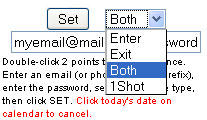
Enter – Only when the GPS tracker enters a defined area
Exit – Only when the GPS tracker leaves a defined area
Both – Both when the GPS tracker enters and exits a defined area
1-Shot – Just a simple 1 time geofence that will disappear after the GPS tracker has been violated the fence.
Now enter the email or phone number you want alerted. You can have multiple people alerted by adding “;” between each recipient and you can also have it send an SMS text message if you use the following syntax. +1phonenumber.
Do not include any spaces or dashes
ex. (+15552221212)
After this use your password (same password for polling) and hit set. To verify that the fence has been saved look at the bottom of the screen and it should say “Fence Saved”.
To delete a fence click the geo fence button, click on the delete text next to the fence. Now enter your password and click on “set”. Those fences have now been deleted.


